F0 — SAOS Fundamentals
F0 is a theory-only introduction for readers who are new to Ciena SAOS 10x. There is no topology to deploy and no configuration goal. Read this guide before starting F1.
How the SAOS Objects Fit Together
An IP interface reached through an Ethernet faceplate port is built from several linked SAOS objects. The physical interface components are abstracted by an Ethernet Trail Termination Point (ETTP). The ETTP is bound to a logical port, which is the port abstraction used by services. A flow point (FP) references that logical port, applies a classifier, and connects matching traffic to a forwarding domain (FD). The IP interface then uses the FD as its Layer 2 underlay.
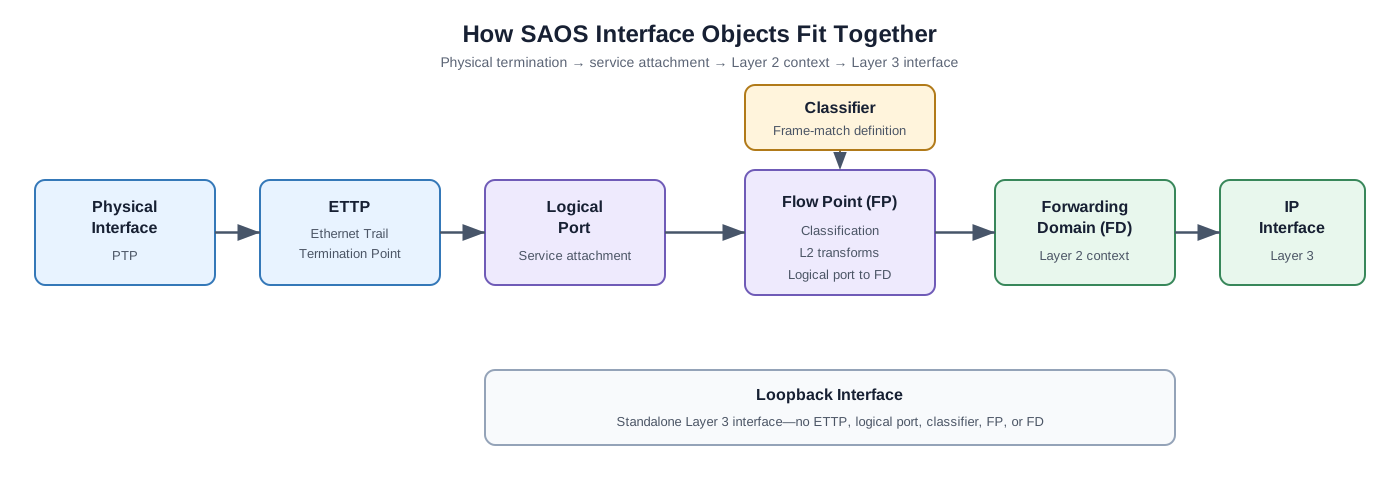
| Object | Role |
|---|---|
| Physical interface components | The Ethernet medium, transceiver (XCVR), and physical termination point (PTP). |
| ETTP | Ethernet Trail Termination Point that abstracts the underlying physical interface components and terminates the Ethernet trail. |
| Logical port | The service-facing port abstraction bound to one ETTP by default, or to multiple ETTPs for an aggregation. |
| Classifier | A reusable configuration object that defines traffic match criteria, such as a VLAN ID. |
| Flow point (FP) | Applies attached classifiers on a logical port and connects matching traffic to an FD. |
| Forwarding domain (FD) | Provides the Layer 2 forwarding context beneath an IP interface. |
| IP interface | Adds Layer 3 behavior, including the MTU and IPv4/IPv6 addresses. |
| Loopback interface | A logical Layer 3 interface that does not require a port, classifier, FP, or FD. |
The classifier does not process frames by itself. It becomes active in the forwarding path when an FP references it. The FP implements the classifier match for its logical port in the dataplane and resolves matching traffic into the configured FD. L2 services are configured through logical ports and flow points, not directly on ETTPs.
Traffic Through the Objects
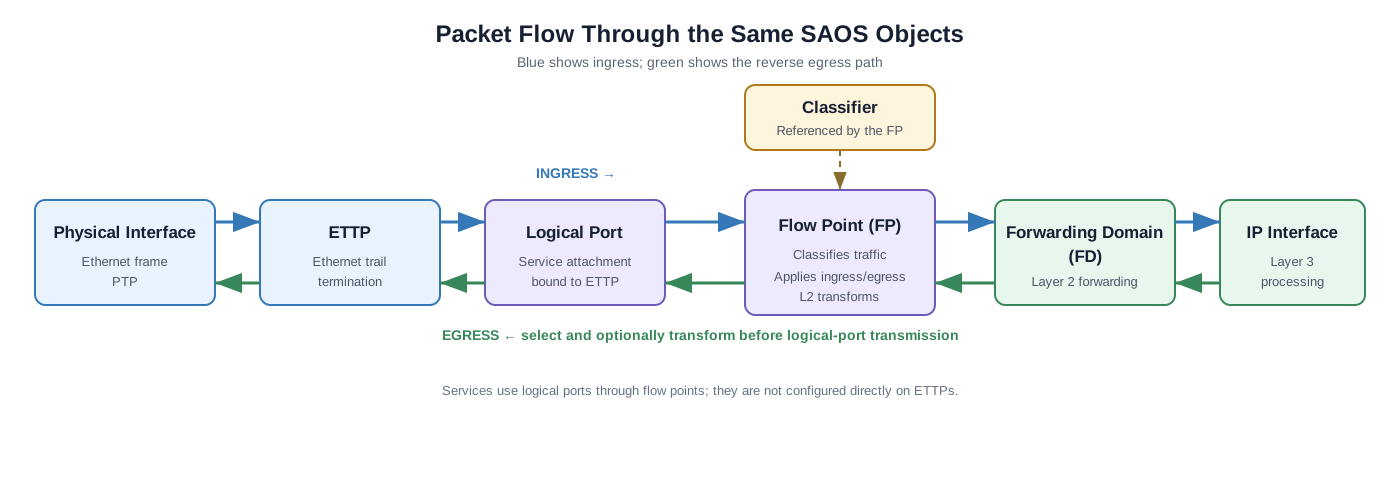
On ingress, a frame passes through the physical interface components and ETTP to the bound logical port. The FP applies its attached classifier and optional ingress L2 transformation, and matching traffic enters the FD used by the IP interface. On egress, traffic returns through the FD and FP, where an egress L2 transformation can be applied before transmission through the logical port, ETTP, and physical interface.
Key idea: the ETTP represents Ethernet termination, the logical port is the service-facing port abstraction, and the FP applies classifier logic to connect that logical port to the FD.
Operational and Configuration Contexts
SAOS separates commands that inspect the system from commands that change it.
| Context | Typical prompt | Purpose |
|---|---|---|
| Operational | PE-1> |
Run show, ping, and other monitoring commands. |
| Configuration | diag@PE-1# |
Create or change configuration objects. |
| Configuration sub-mode | Prompt includes the current object or level | Configure individual properties within an object hierarchy. |
Enter configuration mode with:
config
The main navigation commands are:
| Command | Meaning |
|---|---|
exit |
Moves up one configuration level. At the top level, it leaves configuration mode. |
apply |
Applies pending edits without leaving configuration mode. |
return |
Leaves all configuration levels, but discards pending edits. |
Remember: use
showcommands to inspect state in the operational context. Useconfigonly when you intend to change the device.
Understanding the CLI Hierarchy
The SAOS 10x CLI is hierarchical. A command can be entered as one complete path:
fps fp FP-IPI-1-601 fd-name FD-IPI-1-601 logical-port 1
The same configuration can be entered by moving through the hierarchy:
fps
fp FP-IPI-1-601
fd-name FD-IPI-1-601
logical-port 1
exit
exit
Both forms configure the same object. Complete commands are convenient for short changes. Sub-modes make longer objects easier to read, but you must track your current level and use exit to move back up the hierarchy.
Advanced CLI
The navigation table above named exit, apply, and return. This section shows when you reach for each — plus gotop — and how SAOS decides when an edit takes effect. Every prompt and message below was captured from a live SAOS 10x node (the operational prompt is PE_1>, the config root is diag@PE_1#, and a sub-mode prompt names the current level, e.g. diag@PE_1(interface)#).
When an edit takes effect
There are two ways your edits reach the running configuration.
A complete command applies immediately. Typing a full object path on one line takes effect the moment you press Enter — SAOS echoes Applying 1 edit:
diag@PE_1# oc-if:interfaces interface DOC-LB config name DOC-LB type loopback
Applying 1 edit
diag@PE_1#
This is why the hands-on labs never type apply: every configuration line is a complete path, applied on Enter.
Edits made inside a sub-mode are staged. When you descend into an object to set several properties, those edits are held until you step back up. Entering a container drops you into a sub-mode (note the prompt), and setting a property there produces no Applying message yet:
diag@PE_1# oc-if:interfaces interface DOC-LB
diag@PE_1(interface)# ipv4 addresses address 10.20.30.40 config ip 10.20.30.40 prefix-length 32
diag@PE_1(interface)#
The staged edits are applied when you leave the level — with apply, exit, or gotop.
apply — commit without leaving the level
apply writes staged edits to the running configuration without changing your position in the hierarchy. Reach for it to commit a partial change and keep working in the same sub-mode:
diag@PE_1(interface)# apply
Applying 1 edit
diag@PE_1(interface)#
exit — step up one level
exit moves up exactly one level, applying any edits staged at the level you leave. From the config root it returns you to the operational prompt. Walking all the way out of the interface hierarchy takes one exit per level:
diag@PE_1(interface)# exit
Applying 1 edit
diag@PE_1(interfaces)# exit
diag@PE_1# exit
PE_1>
gotop — jump straight to the config root
When you are deep in a sub-mode and want to configure an unrelated object, gotop returns you to the top of the configuration hierarchy in a single step — applying staged edits on the way — and leaves you in config mode:
diag@PE_1(interface)# gotop
Applying 1 edit
diag@PE_1#
Compare with the three exit commands above: gotop collapses that climb into one.
Key idea: complete one-line commands apply themselves; sub-mode edits are staged until you step up.
applycommits in place,exitcommits one level at a time, andgotopcommits and jumps to the root — all without leaving config mode.returnleaves config mode and discards any edit still pending.
| Command | Moves you to | Pending edits | Leaves config mode? |
|---|---|---|---|
apply |
nowhere (same level) | applied | no |
exit |
up one level | applied | only from the root |
gotop |
the config root | applied | no |
return |
the operational prompt | discarded | yes |
Viewing the Running Config
The CLI sections above are about changing a node. This section reads one back.
Except where a capture names a different node, everything below was taken from
a SAOS 10x simulator running release 10.12.00.0228 — the same image the labs
use — with the DOC-LB loopback from the previous section applied.
One note before the commands. These are tools for reading a node, not for
testing one: a lab's tests.md may not use show running at all, because
echoing configuration back proves a line was typed, not that the feature it
configures works. Inspect with these; assert on behavior.
The commands below, at a glance. The options stack: scope, format, and filter
all attach to the same show running config.
| Group | Command | What you get |
|---|---|---|
| Dump | show running config |
Complete command paths carrying the exit lines — the form you can paste onto another node |
show running |
The same configuration as an indented tree, with no exit lines — to read, not to replay |
|
| Scope | ... excluding-bootstrap |
Only what was configured over the factory baseline |
... with-defaults |
That, plus every value left at its default | |
... section <name>, ... xpath <path> |
One top-level YANG container, or one subtree | |
| Format | ... format cli, ... format xml |
The default CLI form, or the YANG data with namespaces as a NETCONF payload carries it |
... line-numbered |
Each line prefixed with its position in the full output | |
| Filter | a pipe, then grep, exclude, begin, or end |
Keep, drop, or truncate lines — the full set is under Narrowing the output |
| Diff | config compare source running target <snap> |
The rollback — commands that undo everything done since <snap> |
config compare source <snap> target running |
The play — commands that reproduce everything done since <snap> |
|
config backup filename <name> |
Takes the <snap>; running and bootstrap work in either slot too |
show running and show running config
The two entry styles from earlier in this guide come back here as two output styles, and the one word between them decides which you get.
show running config prints the flat form — each object as one complete
command path, the same shape you would type:
PE_1> show running config section fds
fds fd "remote-fd" pfg-profile "default-pfg-profile"
fds fd "remote-fd" initiate-l2-transform vlan-stack "1" push-pcp map push-vid 127
show running prints the same configuration as an indented tree:
PE_1> show running section fds
fds
  fd 'remote-fd'
    pfg-profile "default-pfg-profile"
    initiate-l2-transform
      vlan-stack '1'
        push-pcp map
        push-vid 127
The tree is easier to read, and it has been stripped of every exit that
would let you put it back. Across the whole node the difference is not
subtle: show running config produces 1353 lines carrying 479 exit
commands, while show running produces 3093 lines carrying none. Read a node
with show running; move a node's configuration with show running config.
Trimming the bootstrap noise
Most of what a node is running, nobody typed. SAOS boots a factory baseline —
port definitions, maintenance domains, DHCP clients, NACM rules — and on the
lab sim that baseline is 1353 lines. excluding-bootstrap subtracts it and
leaves the 59 lines that were configured on top:
show running config excluding-bootstrap
This is the everyday form. It is also the one to reach for when you want to confirm your own work and nothing else:
PE_1> show running config excluding-bootstrap | grep DOC-LB
oc-if:interfaces interface "DOC-LB" config name "DOC-LB" type loopback
oc-if:interfaces interface "DOC-LB" ipv4 addresses address "10.20.30.40" config ip "10.20.30.40" prefix-length 32
Seeing what you did not set
with-defaults goes the other way, adding every value the node is running at
its default — 1788 lines where the plain form gives 1353. Reach for it when a
feature behaves as though something is configured and you cannot find the
line. Often there is no line, only a default.
show running config with-defaults
Other formats
format cli is the default and needs no flag. format xml prints the same
configuration as the YANG data the node actually stores, namespaces included —
the form a NETCONF payload takes:
PE_1> show running config section fds format xml
<fds xmlns="urn:ciena:params:xml:ns:yang:ciena-pn:ciena-mef-fd">
  <fd>
    <name>remote-fd</name>
    <pfg-profile>default-pfg-profile</pfg-profile>
    <initiate-l2-transform>
      <vlan-stack>
        <tag>1</tag>
        <push-pcp>map</push-pcp>
        <push-vid>127</push-vid>
      </vlan-stack>
    </initiate-l2-transform>
  </fd>
</fds>
format json is rejected — SAOS answers Unsupported Format.
Narrowing the output
Three ways to ask for less, and they combine:
| Option | Effect |
|---|---|
section <name> |
Only the named top-level section |
xpath <path> |
Only the subtree at a YANG path |
line-numbered |
Prefix each line with its position in the full output |
A section name is the YANG container, prefix included where the model has one
— fds, classifiers, system, oc-if:interfaces. Guessing at the CLI
keyword instead of the container gets you told:
PE_1> show running config section interface
 No object match for node 'interface' in expr '/interface'
The | filters are the familiar set, and grep, include, and only are
three spellings of the same thing:
| Filter | Effect |
|---|---|
grep, include, only |
Keep lines containing the pattern |
exclude, not |
Drop lines containing the pattern |
begin, start |
Start output at the first matching line |
end, stop |
End output at the first matching line |
null |
Discard the output |
Combined, they answer "where does this live in the file?":
PE_1> show running config section oc-if:interfaces line-numbered | grep DOC-LB
46: oc-if:interfaces interface "DOC-LB" config name "DOC-LB" type loopback
47: oc-if:interfaces interface "DOC-LB" ipv4 addresses address "10.20.30.40" config ip "10.20.30.40" prefix-length 32
config compare — the configuration as a diff
config compare answers a different question: not "what is configured?" but
"what changed?"
config compare source <reference> target <comparison>
The output is not a list of differences. It is the command script that turns
the source into the target — plain command paths for what has to be added,
no-prefixed paths for what has to be removed. Which end you put where
decides what you get back.
Both source and target take running, bootstrap, or the name of a saved
backup — which is how you diff a node against a known-good state. Take the
snapshot with config backup:
3984> config backup filename f0-probe2
Backup successful.
Add a DOC-PROBE loopback after that, and the two directions give you the two
scripts worth having. Naming running as the source asks "how do I get back?"
— the rollback:
3984> config compare source running target f0-probe2
no oc-if:interfaces interface "DOC-PROBE"
Naming the snapshot as the source asks "how do I get here?" — the play, which is what you hand to another node, or to a change record:
3984> config compare source f0-probe2 target running
oc-if:interfaces interface "DOC-PROBE" config name "DOC-PROBE" type loopback
Nothing about that pair is specific to backups. Swap the snapshot for
bootstrap and the same two directions become "undo everything since this node
booted" and "rebuild this node from factory". The four captures above come from
a physical 3984 rather than the lab sim, which rejects a saved backup in the
source slot.
One limit worth knowing before you lean on it: config compare accepts no |
filter, the one command in this section that does not. Narrow it by choosing
the two states you compare, not by filtering what comes back.
Key idea:
show runningis the version you read andshow running configis the version you can put back — theexitlines are the whole difference.excluding-bootstrapnarrows it to what someone configured,with-defaultswidens it to what the node inherited, andconfig compareturns any two of those states into the script that moves between them.